
Building a Make automation from a blank canvas is where a lot of marketers stall — too many modules, too much wiring, not enough time. Templates solve that: pre-built scenarios you import in a couple of clicks and adapt to your own apps, no coding required. This guide is for marketers who want working automations today, not next quarter. You will get the templates worth starting with — lead capture, email, social, reporting, and AI content — plus exactly how to import one, and the one pricing detail that catches people out (a “free” template can still burn through your operations). By the end you will know which scenarios to grab first and how to run them without wasting your monthly quota.
Quick Answer: How Make Templates Work
Make templates are pre-built scenarios you import free from the Template Gallery on any plan, including the free tier. You do not pay for the template itself — you pay operations (each module execution counts as one) only when the scenario runs. Import, connect your apps, customize, and activate in under an hour.
What Make Templates Are and Where to Find Them
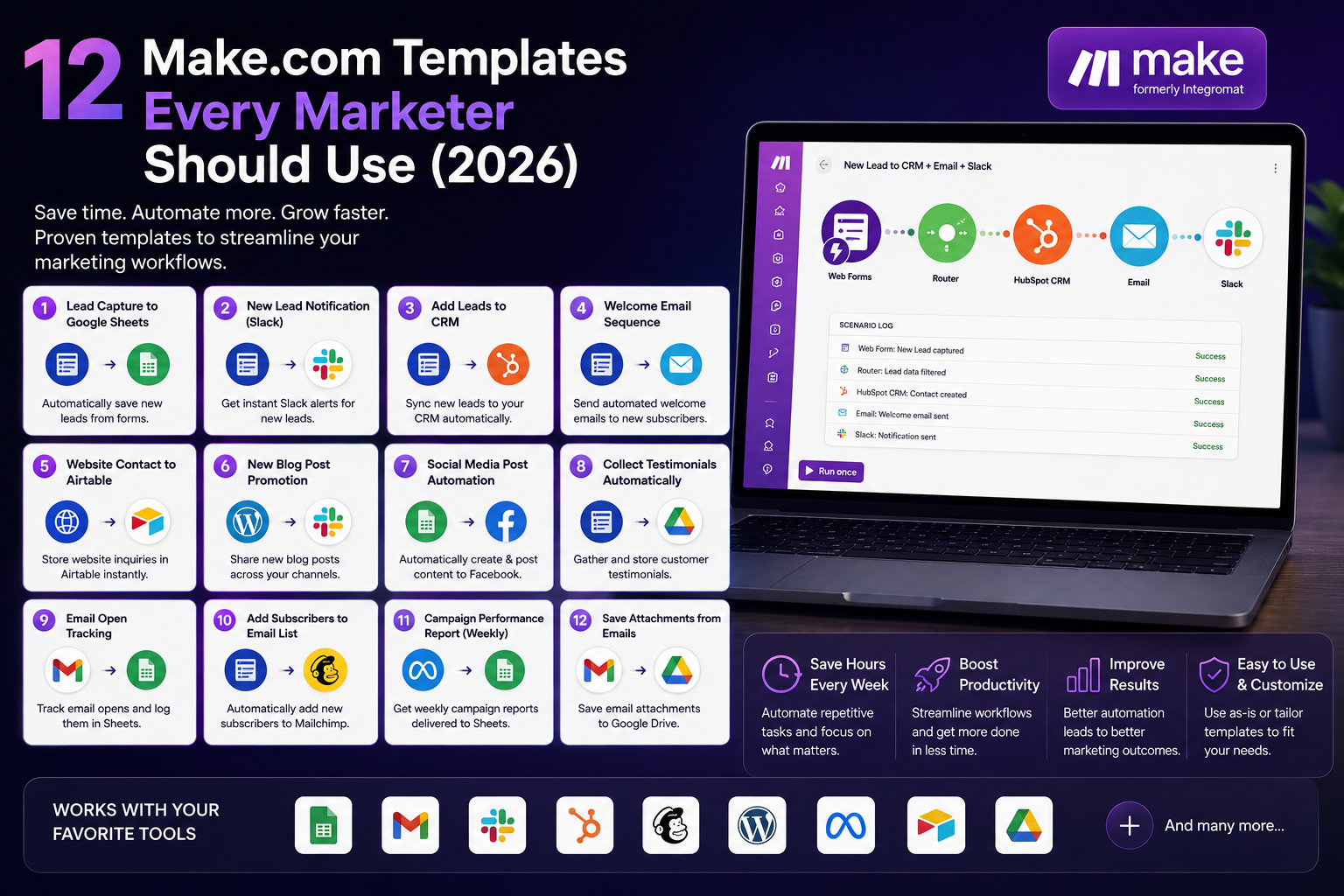
A template is a ready-made automation scenario that someone has already wired up, so you can copy it and swap in your own accounts instead of building from scratch. The official Make Template Gallery hosts well over 1,000 pre-built scenarios, and you can filter them by app (HubSpot, Slack, Shopify, Mailchimp) or by category such as Sales, Marketing, Operations, and AI. You will also find community-contributed templates and importable blueprints (JSON files) shared outside the gallery, which you bring in with the Import Blueprint option.
Templates cover the workflows marketers repeat constantly: email nurture sequences, social scheduling, lead-scoring pipelines, and ad-budget adjustments. Starting from one cuts implementation from weeks to hours, which is the entire point — you spend time on strategy, not on plumbing APIs together. The AI category has grown especially fast in 2026, with scenarios that plug OpenAI, Gemini, or Claude directly into your marketing data, so the gallery is worth re-checking every few weeks as new patterns land.
How to Use a Make Template (Step by Step)
The process is genuinely quick once you have done it once. In practice it looks like this:
- Log into Make and open the Templates section, or browse the public gallery at make.com/en/templates.
- Use the search bar to filter by the app you use (for example “Mailchimp”) or by name.
- Click Use Template. Beginners should pick Start guided setup, which walks you through each step; experienced users can choose Create scenario from template for full flexibility.
- Connect the accounts the scenario needs (your CRM, email tool, spreadsheet) and configure each module — field mappings, filters, schedules.
- Run a test, confirm the output is correct, then activate the scenario.
That is the whole loop. Once a scenario runs cleanly, you can save and duplicate it, or share it with a teammate via a scenario link — which is how small teams standardize their automations.
The Best Make Templates for Marketers
These are the scenarios worth grabbing first, chosen because they map to work marketers do every week and are simple enough to adapt in under an hour.
| Template | What it does | Typical apps |
|---|---|---|
| Form to spreadsheet | Logs every lead from your forms into a sheet automatically | WPForms / Gravity / Elementor → Google Sheets |
| Welcome email | Sends an instant welcome when someone subscribes | Form → Gmail / Mailchimp |
| Add contact to list | Pushes new signups straight into your email tool | Website form → Mailchimp |
| Social cross-posting | Reposts new content across your channels | Instagram → Facebook / X |
| Booking to calendar | Puts new bookings or timelines onto your calendar | Airtable → Google Calendar |
| AI content repurposing | Turns a topic list into draft posts with AI, queued for review | Google Sheets → OpenAI → queue |
Two categories deserve extra attention. Lead capture and routing is the highest-value starting point: logging every form submission to a sheet and pushing qualified leads into your CRM removes manual data entry entirely, and it is the same pattern as a basic Google Sheets to CRM sync. AI content is the fastest-growing group — templates that pair a Google Sheet of topics with OpenAI, Gemini, or Claude to draft posts, with a human review step before anything publishes. Build these in two scenarios (generate, then publish) and add a review gate so nothing hits your brand voice unchecked.
Three Marketing Workflows Worth Building First
To make this practical, here is how three high-value scenarios actually chain together — the module sequence you would adapt from a template rather than build blind.
1. Lead capture with routing. Trigger on a new form submission, add a filter that checks the lead’s source or budget, then branch: qualified leads create a CRM contact and post a Slack alert to your sales channel, while everyone else drops into a nurture spreadsheet. Because the filter sits right after the trigger, unqualified leads never touch the expensive CRM module — keeping operations low while nothing slips through.
2. Welcome sequence starter. Trigger when a contact joins your list, wait a set delay, then send a personalized welcome email and tag the contact so your main email tool can take over the sequence. This bridges your signup form and your email platform without paying for a separate onboarding tool.
3. AI content pipeline. Add blog or social topics to a Google Sheet with columns for title, target keyword, and tone. A new row triggers the scenario, sends the data to an AI module (OpenAI, Gemini, or Claude) with a fixed system prompt, and writes the draft back to the sheet or a queue. Crucially, keep a human review step before anything publishes — automation should draft, not post unchecked. Split it into two scenarios (generate, then publish) so you control exactly what goes live.
Each of these starts from an existing gallery template — you are adapting a proven pattern, not reinventing it. If your automations lean toward online stores, our roundup of workflow automation tools for e-commerce covers store-specific template patterns like order routing and abandoned-cart recovery.
When a Template Is the Wrong Starting Point
Templates are a head start, not a finish line. If your process has unusual logic — several conditional branches, custom data transformations, or an app that is not in the gallery — a generic template can take longer to bend into shape than building fresh. In those cases, use a simple template to learn the interface, then create a scenario from scratch for the complex flow. And if you find yourself fighting Make’s operation costs on heavy scenarios, that is a signal to compare billing models: a Zapier vs Make comparison and per-run tools like self-hosted n8n may fit high-volume automations better than per-operation pricing.
The Pricing Detail That Catches People Out
Here is the part that surprises new users, and it is worth understanding before you activate anything. Browsing and importing templates is completely free on every plan, including the free tier’s 1,000 monthly operations. But templates are not free to run. On Make, every module execution inside a scenario counts as one operation, and operations reset monthly.
That matters because a template that looks simple can be operation-heavy. A scenario with, say, six modules that runs 500 times a month consumes 3,000 operations — three times the free-tier allowance — even though the template itself cost nothing to import. So the “free template” can still push you onto a paid plan once it is live. Before you activate, count the modules and estimate how often the scenario will trigger, then check that against your plan. Our full breakdown of Make’s pricing shows exactly how operations map to cost.
How to Keep Template Costs Down
- Filter early. Add a filter right after the trigger so the scenario stops on irrelevant records before it runs expensive modules — this is the single biggest operation saver.
- Deduplicate. Prevent the same record from processing twice, which quietly doubles some marketers’ usage.
- Batch where you can. Scheduled scenarios that process many rows per run are more efficient than event-triggered ones firing constantly.
- Start with one weekly workflow. Get a single high-value scenario running reliably, measure its operations, then clone the pattern — rather than activating ten templates at once.
If, after modeling the operations, Make’s costs climb higher than you want, it is worth comparing against the field. Our roundup of Zapier alternatives for marketers and our Pabbly Connect review cover cheaper billing models for the same workflows.
Frequently Asked Questions
Are Make.com templates free?
Browsing and importing templates is free on every Make plan, including the free tier. You pay operations — each module execution — only when the scenario actually runs, not for the template itself.
Where do I find Make templates?
Inside your Make dashboard under the Templates section, or in the public gallery at make.com/en/templates. You can filter by app or category, and the Make community forum hosts additional user-contributed templates with practical setup notes.
Can I edit a template after importing it?
Yes. Once imported, a template becomes a normal scenario you can fully customize — add or remove modules, change filters, adjust schedules, and remap fields. You can also duplicate it or share it with teammates via a scenario link.
How many operations does a template use?
It depends on the number of modules and how often it runs. Each module execution is one operation. A six-module scenario running 500 times a month uses about 3,000 operations, so estimate both figures before activating to avoid unexpected upgrades.
Which template should a beginner start with?
A simple two-app scenario like Google Sheets to Gmail, or logging form submissions to a spreadsheet. Use the guided setup, which walks you through each step, and pick one workflow you run weekly rather than automating everything at once.
Can I import templates from outside Make?
Yes. Blueprints shared as JSON files can be brought in with the Import Blueprint option. After importing, you set up the connections and configure the modules exactly as you would with a gallery template.
The Bottom Line
Make templates are the fastest way for a marketer to go from idea to working automation, and with over 1,000 ready scenarios there is almost certainly one close to what you need. Import is free, setup takes under an hour, and the only real discipline required is watching your operations — filter early, start with one weekly workflow, and model the cost before you activate. Grab a lead-capture template first, get it running cleanly, then build out from there. That is how automation actually compounds: one reliable scenario at a time, not ten half-configured ones. Bookmark the gallery, revisit it as your stack grows, and let each working scenario free up the hours you would rather spend on strategy.