
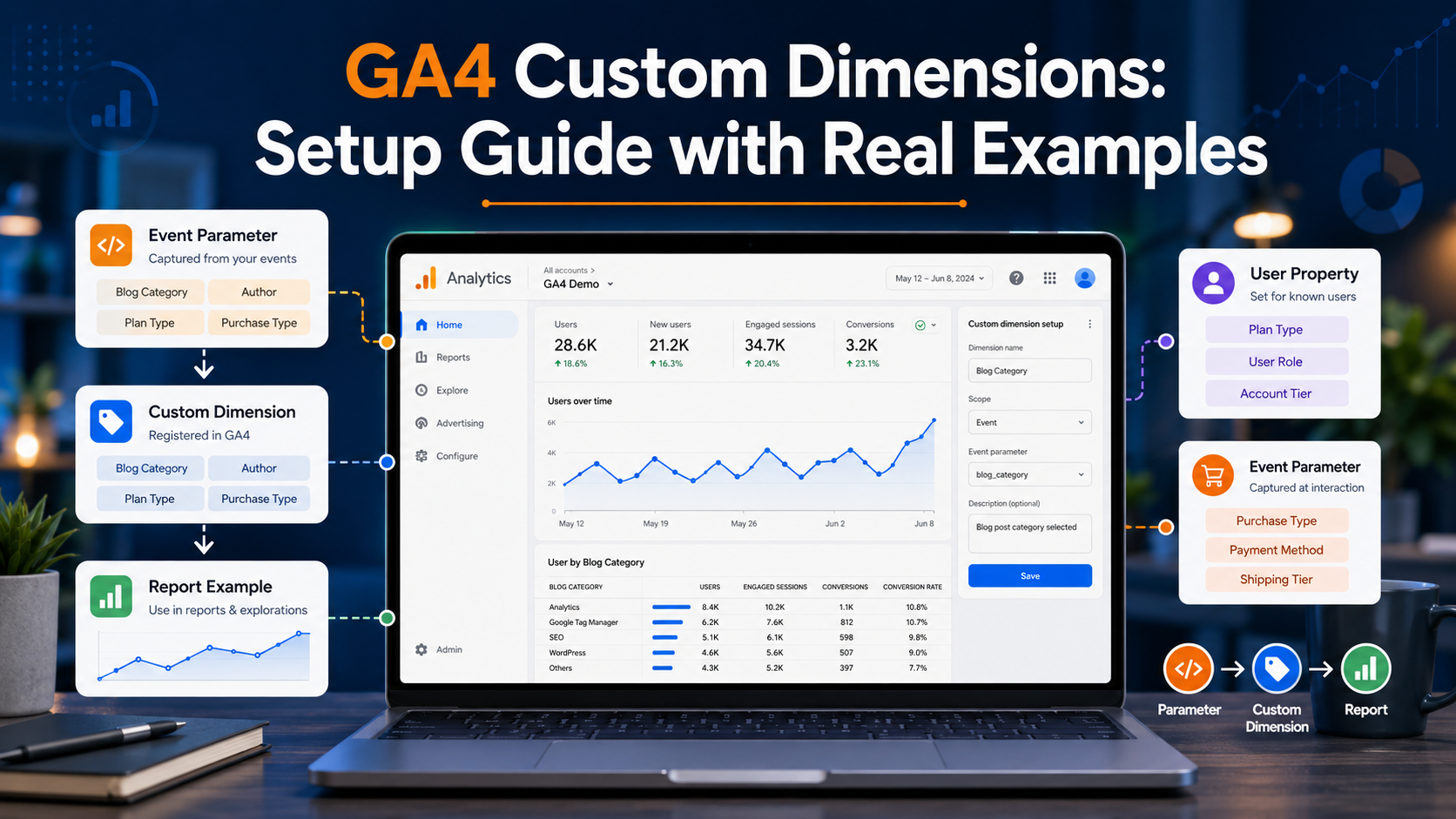
GA4 ships with dozens of built-in dimensions, but the moment you want to report on something specific to your business — which blog category drives signups, which membership tier converts, which product colour sells — you hit the wall. That is where GA4 custom dimensions come in: they let you attach your own data to events and users and make it visible in reports.
This guide is for marketers and SMB owners who already have basic GA4 setup running and want to extend it without breaking anything. We cover what custom dimensions really are, the three scopes, the exact 2026 limits, a step-by-step setup with GTM, real examples for each scope, and the mistakes that quietly ruin your data so you can avoid them from the start.
Quick Answer: How Custom Dimensions Work
A custom dimension is two things working together: an event parameter (or user property) you send from your site, and a registration in GA4 Admin that maps that parameter to a readable name and a scope. Both halves are required — sending without registering means the data sits invisible in raw collection; registering without sending means an empty dimension. Crucially, registration is not retroactive: data only appears from the moment you register it forward, so set it up before you need the history.
What GA4 Custom Dimensions Actually Are
Event parameter vs registered dimension
An event parameter is the key-value pair sent with an event at collection time — for example, file_name: "pricing.pdf" sent with a file_download event. The parameter is where the data lives. A custom dimension is the registration in GA4 Admin that connects that parameter name to a display label and makes it visible in standard reports, Explorations, and audiences. Without registration, the parameter still exists in raw collection and in the BigQuery export, but it is invisible in the GA4 interface. This split trips people up constantly: they see their parameter in DebugView, assume the job is done, and then wonder why it never shows up in a report. The two steps are separate by design, and you need both.
The three scopes: event, user, item
Scope decides how the value attaches to your data, and choosing wrong is the single most common cause of broken reports. Event-scoped dimensions attach to one event only — the next event from the same user will not inherit the value. User-scoped dimensions attach to the user profile and persist across every future event until overwritten, which is right for stable attributes like subscription tier. Item-scoped dimensions live inside the items array of ecommerce events and describe individual products. Note that session scope is not available for custom dimensions in GA4. If you genuinely need a value to apply to every event in a session, you have to send it with each event yourself, because GA4 will not backfill it across the session the way Universal Analytics once did. Getting scope right at the design stage saves hours of debugging later, since a mis-scoped dimension fails quietly rather than throwing an error.
The Limits You Must Plan Around
These limits are per property — not per account or per stream — and they are easy to hit on a complex setup, so plan before you instrument. One important nuance: deleting an event-scoped dimension frees the slot after a 48-hour wait, but archiving a user-scoped dimension does not free its slot, so the 25 user-scoped definitions are effectively fixed.
| Type | Standard property | Analytics 360 | Notes |
|---|---|---|---|
| Event-scoped | 50 | 125 | Slot frees 48h after deletion |
| User-scoped | 25 | 100 | Archiving does NOT free a slot |
| Item-scoped | 10 | 25 | Explorations only, not standard reports |
| Custom metrics | 50 | 125 | Numeric values only |
| Calculated metrics | 5 | 5 | Built from numeric metrics |
How to Set Up a Custom Dimension, Step by Step
Here is the full event-scoped workflow using Google Tag Manager. The order of sending and registering does not strictly matter, but do both at roughly the same time — a gap means missing data for that window.
Step 1 — Send the parameter
Push the value into the data layer, then read it into your GA4 event tag in GTM. For a blog where you want to know which category drives engagement:
dataLayer.push({
  event: 'article_view',
  article_category: 'analytics',
  author_name: 'editorial'
});
In GTM, create Data Layer Variables for article_category and author_name, then add them as parameters on your GA4 event tag. The parameter name you send must match the name you register exactly — article_category is not the same as articleCategory.
Step 2 — Register it in GA4 Admin
Go to Admin → Custom definitions → Custom dimensions → Create custom dimension. Enter a Dimension name (the readable label in reports, e.g. “Article Category”), pick the Scope (Event), and type the Event parameter name exactly as it arrives (article_category). Save. That registration tells GA4 — and connected tools like Looker Studio — to expect the parameter and surface it as a dimension.
Step 3 — Verify in DebugView, then wait
Before trusting anything, open DebugView and confirm the parameter is arriving with the right value on the right event. A common agency mistake is registering a dimension before confirming the event actually fires. Once verified, data takes 24–48 hours to populate in standard reports — DebugView is immediate, reports are not. Treat the same way you would any tracking change, alongside your UTM parameters and campaign data.
Real Examples by Scope
Event-scoped: content category and form name
Event-scoped is right for data that describes a single action. Sending article_category on an article_view lets you see which topics drive engagement. Sending form_name on a form_submit event lets you compare your newsletter form against your contact form. Both describe that one interaction and should not persist — which is exactly what event scope does.
User-scoped: membership tier
For stable attributes that should follow the user everywhere, use a user property. Set it on the first event after login, when you have the identity context:
gtag('set', 'user_properties', {
  membership_tier: 'premium'
});
Now every subsequent event — page views, purchases, conversions — carries membership_tier, so you can segment any report by plan. The classic mistake is sending this as an event parameter on the login event only, which leaves every later event blank.
Item-scoped: product attributes
Item scope answers product-level questions like revenue per colour or margin tier. The custom parameters go inside each object in the items array of an ecommerce event:
dataLayer.push({
  event: 'add_to_cart',
  ecommerce: {
    items: [{
      item_id: 'SKU_12345',
      item_name: 'Running Shoes',
      item_color: 'blue',
      margin_tier: 'high'
    }]
  }
});
Remember that item-scoped dimensions only appear in Explorations, not standard reports. If you are wiring up ecommerce tracking from scratch, our GA4 ecommerce events guide covers the full items array first.
Common Mistakes That Silently Break Your Data
The most dangerous mistakes are the ones that produce no error — your dimension just stays empty or wrong while you assume it works.
- Wrong scope: using event scope for something stable like membership tier (data only on one event) or user scope for something transient like a search term (every future event inherits the wrong value).
- Name mismatch: the registered name and the sent parameter must be identical, character for character.
- Passing PII: never send emails, phone numbers, or names as dimension values — it violates Google’s Terms and can get your property permanently deleted. Keep this in mind alongside your cookie consent setup.
- High cardinality: dimensions with thousands of unique values (full URLs, user IDs, timestamps) overflow into an aggregated “(other)” row and become useless for analysis — keep custom dimension values to a bounded set of categories wherever you can.
- Hoarding slots: registering every parameter you ever send. Audit quarterly and retire anything not queried in 90 days.
Also remember the 100-character value limit (with a few exceptions like page_location at 1,000), and that raw exports keep everything regardless — so if you need full history or unregistered fields, lean on BigQuery or server-side tracking.
Which Scope Should You Use?
When you are unsure, work backwards from the question you want to answer rather than from the data you happen to have. If the answer is “per action,” reach for event scope; if it is “per person,” user scope; if it is “per product,” item scope. That single habit prevents most scope mistakes before they happen:
- Use event scope when the value describes a single action: content category, button label, form name, video title.
- Use user scope when the value is a stable trait of the person: subscription tier, customer type, company size, signup source.
- Use item scope when the value describes a product inside an ecommerce event: colour, size, brand, margin tier.
- Use a custom metric instead when the value is numeric and you want to sum or average it — loyalty points, scores, credits.
- Use nothing if GA4 already captures it; check the built-in dimensions before spending a slot.
Conclusion
Custom dimensions are what turn GA4 from a generic report into a tool that answers your specific questions — but only if you get the fundamentals right. Send the parameter and register it together, pick the scope deliberately, respect the per-property limits, verify in DebugView, and never pass PII. Start with two or three high-value dimensions rather than registering everything, audit them quarterly, and you will keep the data clean and the slots free. When your tracking grows, our guides on Facebook Pixel vs Meta CAPI and server-side setups are the natural next steps.
FAQ
Are GA4 custom dimensions retroactive?
No. Data only appears from the moment you register the dimension forward — there is no backfill. If you send a parameter for a week before registering it, the reports will miss that week. Raw data streamed to BigQuery, however, keeps the parameter regardless of registration.
What is the difference between an event parameter and a custom dimension?
The parameter is the key-value data sent with an event at collection time. The custom dimension is the GA4 Admin registration that maps that parameter to a readable name and a scope, making it visible in reports. Without registration the parameter exists in raw data but not in the GA4 interface.
How many custom dimensions can I create?
On a standard property: 50 event-scoped, 25 user-scoped, 10 item-scoped, plus 50 custom metrics, all per property. Analytics 360 raises these to 125, 100, and 25 respectively. Deleting an event-scoped dimension frees its slot after 48 hours; archiving a user-scoped one does not.
Why is my custom dimension showing no data?
Usually one of three reasons: the parameter name does not match the registered name exactly, the event is not actually firing (check DebugView), or you registered it less than 24–48 hours ago and reports have not populated yet. Item-scoped dimensions also only show in Explorations, not standard reports.
Should membership tier be event-scoped or user-scoped?
User-scoped. It is a stable attribute that should follow the user across every event, so set it as a user property after login. If you send it as an event parameter on the login event only, it will be blank on all later page views, purchases, and conversions.
Can I send personal data as a custom dimension?
No. Passing emails, phone numbers, full names, or other personally identifiable information violates Google’s Terms of Service and can result in your property being permanently deleted. Use non-identifying values like tiers, categories, or hashed identifiers instead.