
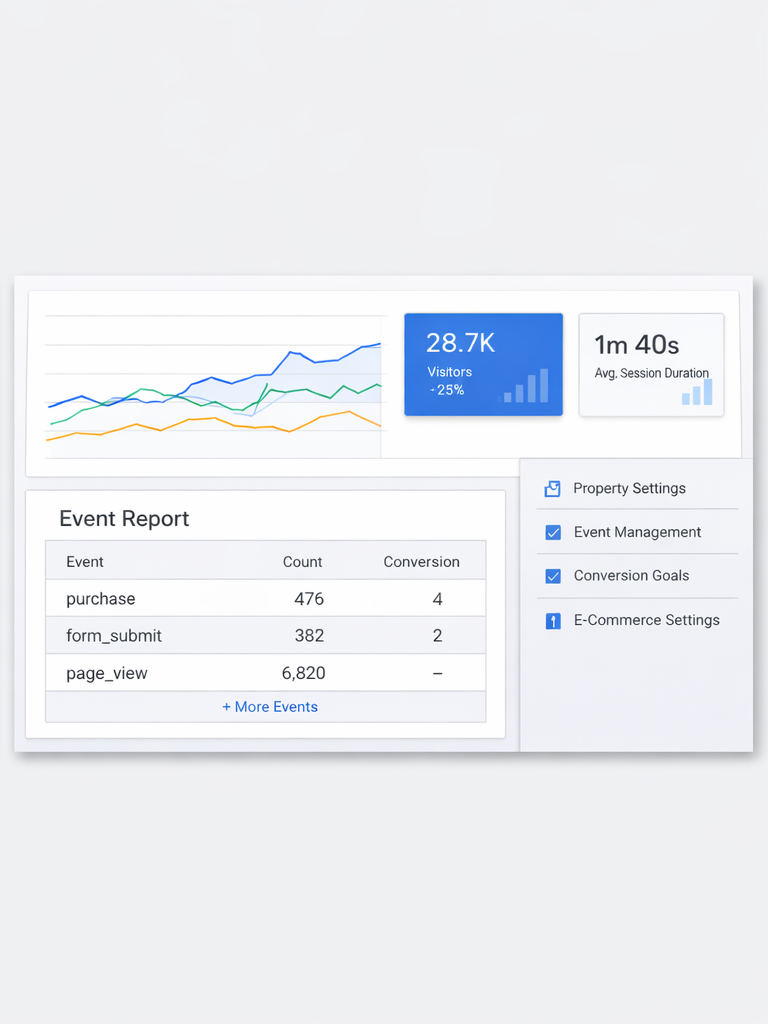
Updated: 2026. GA4 is not “install a script and forget.” If your setup is off, you’ll get pretty charts and bad decisions: duplicated events, broken attribution, missing conversions, and ad optimization that goes the wrong way. This guide is built for SMB owners, marketers, and managers: a clean baseline GA4 setup plus the 10 mistakes that most often ruin reporting (and how to fix them fast).
Table of contents
- What “good GA4 setup” means in 2026
- Before you start: a 15-minute prep list
- Basic GA4 setup: step-by-step
- Events & conversions: the minimum viable stack for SMB
- Traffic sources & UTM: keeping attribution clean
- Integrations (Google Ads, Search Console) and what to verify
- Checklist table: quick quality audit
- 10 common GA4 mistakes (and fixes)
- Debugging: where to look when data feels wrong
- FAQ + Schema
What “good GA4 setup” means in 2026
GA4 is event-based analytics: everything is built around events and their parameters. For SMB, a “good setup” is not hundreds of custom events. It’s the ability to answer five business questions reliably:
- Where do users come from (channels/campaigns), and what actually works?
- Which pages/products/services move users toward leads or purchases?
- How many quality leads/orders happen, and from which sources?
- Do website, CRM, and ad platforms broadly align (at least in trend and logic)?
- Can you trust conversions for ad optimization?
The baseline goal: one clean GA4 tag, consistent UTM rules, conversions tied to real success states, minimal duplication, and a debugging workflow you can repeat after every website change.
Before you start: a 15-minute prep list
Most GA4 pain comes from missing inputs, not from GA4 itself. Get these ready first:
- Access: Google Analytics, Google Tag Manager (if used), Google Ads, Search Console.
- Conversion list: 1–3 primary conversions (lead/order/booking) + 2–4 micro conversions (messenger click, phone click, start checkout).
- UTM rules: one team-wide naming convention for source/medium/campaign/content/term.
- Tech context: SPA/React site, multiple domains/subdomains, redirects, payment pages, iframes, third-party widgets.
- Consent requirements: cookie banner and Consent Mode v2 expectations, if applicable.
Tip: write down your “ideal customer journey” (entry → key page → intent click → form submit/purchase). You’ll replay that path in DebugView to validate tracking.
Basic GA4 setup: step-by-step
Step 1. Create your GA4 property and Web Data Stream
Create (or confirm) a GA4 property, then add a Web data stream. Set your primary domain and name the stream. You’ll receive a Measurement ID (G-XXXX) used by your tag implementation.
In stream settings, check:
- Enhanced Measurement is enabled (then you’ll validate it doesn’t conflict with your custom events).
- You’re not collecting staging/dev domains in production reporting.
Step 2. Implement GA4 via Google tag or GTM
You have two solid options:
- Google tag (gtag.js): quickest path to baseline tracking.
- Google Tag Manager: best when you need custom events, ecommerce, cross-domain rules, or multiple tags.
Critical rule: only one GA4 configuration should run on your production site. Two GA4 setups (or gtag + GTM both firing GA4) is the #1 cause of duplicate page_view and inflated sessions.
Step 3. Verify data in Realtime and DebugView
Open your website and verify:
- Realtime: you appear as an active user.
- DebugView: in debug mode (GTM Preview / GA Debugger / debug parameter), events show up with expected names and parameters.
If Realtime is empty, check the basics first: is the tag on the page, is the Measurement ID correct, and are scripts blocked by CSP, ad blockers, or your consent banner logic?
Step 4. Filter internal traffic safely
Filtering is useful, but easy to overdo. A safe approach:
- Add an Internal traffic rule for stable office/team IPs.
- Run the filter in Testing mode for a few days to ensure you don’t cut real users.
- Only then switch the filter to Active.
If your team uses dynamic IPs (mobile internet, remote work), consider a GTM-based “internal user” flag (cookie/parameter) rather than relying on IP alone.
Step 5. Cross-domain tracking and referral cleanup
If checkout, booking, or account flows happen on another domain/subdomain, configure cross-domain tracking. Otherwise GA4 may split sessions and mis-attribute conversions to payment providers or third-party services.
Also maintain Unwanted referrals for domains that should never become your “source” of conversions (payment gateways, embedded services, widgets).
Events & conversions: the minimum viable stack for SMB
Start simple. You want a small set of stable events that reflect real business actions. Everything else can come later.
A practical minimum set of events
- generate_lead: successful form submission (triggered on true success, not button click).
- contact: viewing contact details or revealing phone (if your UX supports it).
- click with parameters: messenger/phone/email clicks (so you know what users actually tap).
- view_item: product/service detail views (for catalogs).
- add_to_cart, begin_checkout, purchase: for ecommerce (purchase is the most important).
Core rule: each event should fire once per action. If one form submit creates three generate_lead events, your conversion rates and ad optimization will drift away from reality.
How to define conversions correctly
In GA4 you can mark any event as a conversion. Do it with discipline:
- A conversion should represent a valuable completed outcome (lead/order/booking), not a page view.
- Trigger conversions on actual success (thank-you page, success message, confirmed server response).
- Decide if it’s expected to happen once per user/session or multiple times (purchases can repeat).
For most SMB, 1–3 primary conversions is enough. Keep everything else as non-conversion events so you don’t pollute Google Ads optimization with low-intent signals.
Traffic sources & UTM: keeping attribution clean
In 2026, messy attribution is usually self-inflicted: inconsistent UTM parameters and uncontrolled redirects. Use a simple standard:
- utm_source: platform/source (google, facebook, tiktok, newsletter).
- utm_medium: traffic type (cpc, paid_social, email, referral).
- utm_campaign: campaign name (spring_sale_2026, brand_search, retargeting).
- utm_content: creative/variant (video_1, banner_blue, headline_a).
- utm_term: keyword (mostly for search, or when you intentionally fill it).
Make it easy for your team: lowercase only, underscores instead of spaces, and a shared dictionary of allowed values for utm_source and utm_medium. This one habit keeps reporting stable as you scale channels and vendors.
Integrations (Google Ads, Search Console) and what to verify
Integrations matter because they connect measurement to action. Link thoughtfully and avoid duplication.
Google Ads linking
- Link GA4 to Google Ads (admin-level access required).
- Import conversions carefully (only the conversions you want ads to optimize toward).
- Check for duplicated conversions (GA4 conversion plus a separate Google Ads tag tracking the same action).
Search Console linking
Linking Search Console brings organic queries and landing page performance into GA4 reporting, which is useful for SMB teams that want one place to review SEO impact and user behavior together.
Consent Mode v2: why it changes your numbers
Consent logic isn’t optional for many sites. If your banner blocks GA4 entirely, you may see sudden drops in sessions or missing conversion signals for ad platforms. Minimum requirement: ensure your consent implementation matches your policy and does not unintentionally block all measurement even when consent is granted.
Checklist table: quick quality audit
| Check | “Good” signal | Fast way to verify |
|---|---|---|
| Only one GA4 tag runs | No duplicate page_view/session_start spikes | DebugView + tag inspection / GTM container review |
| Events don’t duplicate | generate_lead fires once per successful submit | DebugView during a test submission |
| Conversions track true success | No “conversion on button click” | Trigger based on success state (thank-you / server success) |
| UTM naming is consistent | Clean channels without fragmented variants | Reports → Acquisition → Traffic acquisition |
| Cross-domain is configured | Sessions don’t break; payment domains don’t steal attribution | Walk the funnel across domains and check source changes |
| Internal traffic is filtered safely | Team activity excluded without cutting real users | Testing mode first, then Active |
10 common GA4 mistakes (and fixes)
1) Two GA4 implementations running
Symptom: inflated sessions and duplicated events. Fix: keep a single implementation (either Google tag or GTM). Remove the duplicate GA4 config.
2) Lead conversion fires on button click
Symptom: GA4 leads exceed real CRM leads. Fix: trigger generate_lead only on a confirmed success state (thank-you page, success message, or server confirmation).
3) Payment providers appear as top “sources”
Symptom: conversions attributed to Stripe/PayPal/payment domains. Fix: cross-domain tracking + unwanted referrals so sessions don’t restart mid-funnel.
4) UTM chaos (case, synonyms, inconsistent mediums)
Symptom: your paid channels split into many variants. Fix: enforce one naming convention, lowercase, and a shared UTM dictionary for the team and vendors.
5) Events without parameters
Symptom: you see “click” but don’t know what was clicked. Fix: add parameters like link_url, link_text, button_name, form_id, item_id to make events usable.
6) Enhanced Measurement conflicts with custom events
Symptom: double scroll/outbound events or hard-to-read event lists. Fix: disable the specific auto-events you don’t need, or rename custom events to avoid overlap.
7) SPA websites don’t track virtual pageviews
Symptom: users navigate, but GA4 shows one page. Fix: configure history change triggers and send page_view on route changes.
8) Over-filtering removes real users
Symptom: traffic looks too low compared to business reality. Fix: test filters first, validate with other sources (CRM, server logs, trend checks), then activate.
9) Duplicate conversions in Google Ads
Symptom: Ads overcounts conversions and CPA becomes unstable. Fix: choose one primary conversion approach for optimization and remove duplicates.
10) No tracking regression test after site changes
Symptom: tracking “randomly” breaks after redesigns or form updates. Fix: a simple release routine: replay key flows in DebugView and monitor event/conversion anomalies weekly.
Debugging: where to look when data feels wrong
When numbers don’t match expectations, debug in layers:
- Layer 1: Realtime — are events arriving at all?
- Layer 2: DebugView — are names, counts, and parameters correct?
- Layer 3: Reports → Events/Conversions — are conversions counted as intended?
- Layer 4: Acquisition — are source/medium clean, and are referrals under control?
A practical method: run 3–5 test journeys (UTM entry → key page → contact click → form submit/purchase). If DebugView looks logical, most “mysteries” disappear quickly.
FAQ
Is Enhanced Measurement enough for a proper setup?
No. It’s helpful for basic engagement signals, but business value comes from correct conversions (lead/purchase/booking) and meaningful event parameters that reflect your funnel.
Should I optimize ads using GA4 conversions or Google Ads tags?
Either can work, but avoid duplication and ensure the conversion represents a real successful outcome. Most SMB teams pick one primary conversion approach and keep it consistent.
Why does GA4 show more leads than my CRM?
Common causes: conversions firing on clicks, duplicated tags/triggers, form submissions failing to reach CRM, or users submitting multiple times. Start by verifying success-based triggers in DebugView.
How do I know cross-domain tracking is broken?
If sessions break during checkout/booking and the conversion source becomes a payment provider domain, cross-domain settings or unwanted referrals likely need attention.
What’s the minimum I should track if time is limited?
One GA4 tag, Realtime/DebugView verification, a true-success lead event (generate_lead), 1–2 primary conversions, consistent UTM rules, and unwanted referrals if you use payment or third-party funnel domains.