
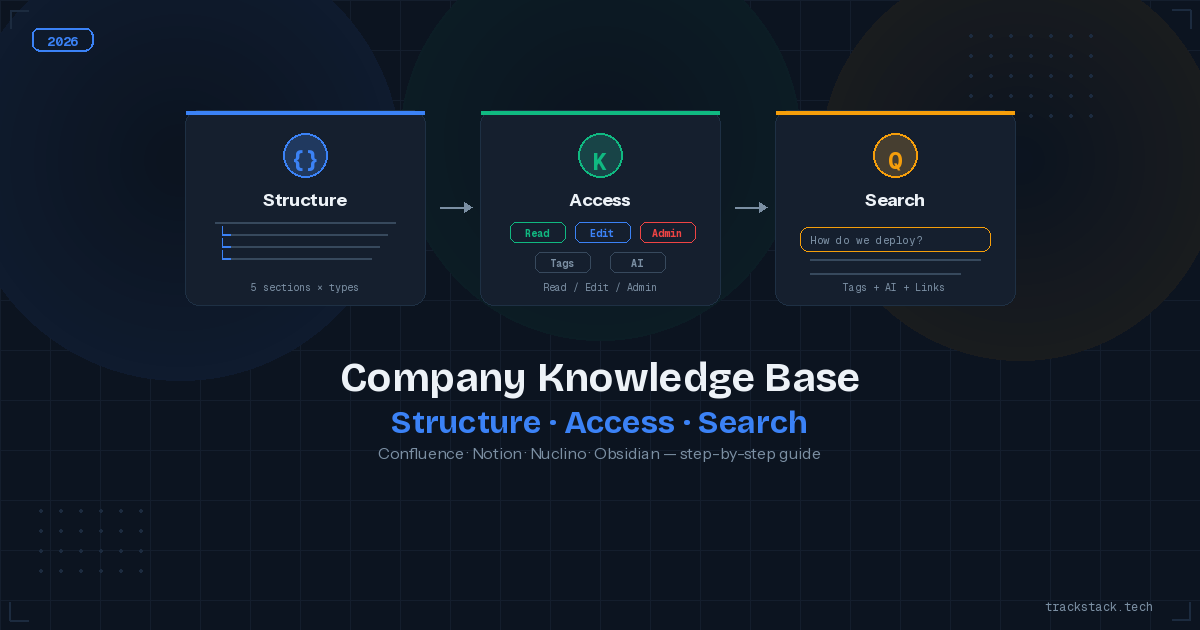
A company knowledge base turns into a document dump within 6 months if you don’t design three things upfront: a logical structure, granular access rights, and fast search. Without these, new hires spend 30+ minutes daily hunting for “that one doc,” and confidential files are visible to people who shouldn’t see them.
Below is a step-by-step guide: how to build a knowledge base that scales from 5 to 500 people. With hierarchy examples, concrete permission setups, and platform comparisons.
Table of Contents
- Structure: From Chaos to Hierarchy
- Access Rights: Who Sees and Edits What
- Search: Making Knowledge Findable
- Platform Comparison for Knowledge Bases
- Checklist: Audit Your Knowledge Base
- FAQ
Company Knowledge Base Structure: From Chaos to Hierarchy
The first mistake: create a knowledge base without structure and hope “people will organize it themselves.” They won’t. Within 3 months you’ll have 200 pages at root level, half without a category, a third named “Notes (2)” or “IMPORTANT!!!”.
Recommended Hierarchy for IT Companies
Structure should mirror your org chart, not your projects. Projects end — departments stay. Base hierarchy for a 20–200 person company:
- Engineering: Architecture Decision Records (ADR), runbooks, API docs, coding standards, developer onboarding, postmortem reports. Each microservice or module gets its own subsection.
- Product: PRDs (Product Requirements Documents), roadmap, user research, product metrics, decision logs. One page per feature linked to its Jira epic.
- Operations: HR processes, security policies, compliance docs, vendor contracts, IT infrastructure. Include guides like DMARC/SPF/DKIM setup and other IT policies.
- Marketing/Sales: brand guidelines, content calendar, pitch decks, competitive analysis, email templates. Integration with your CRM system for current client data.
- Company-wide: mission and values, org chart, general onboarding, benefits, policy book. Readable by all, editable only by HR/admin.
Page Naming Conventions
Without naming conventions, search becomes useless. Three rules that save hours:
- [Category] Document name. Examples: [ADR] Migration from MongoDB to PostgreSQL, [Runbook] Database Restore from Backup, [PRD] Apple Pay Integration. Square brackets let you filter by document type in search.
- Dates only for chronological docs. Postmortems: [Postmortem] 2026-03-15 Payment Service Outage. Meeting notes: [Retro] 2026-Q1 Sprint Review. For everything else, the date lives in page metadata.
- No abbreviations only the author understands. “PM listing Q2” — wrong. “[Product] Listing Feature — Q2 2026 PRD” — right. A new team member should understand the title without context.
Access Rights: Who Sees and Edits What
The most common mistake: give everyone full access to the entire knowledge base. Within a month, a junior accidentally deletes the production runbook, and an intern reads the salary spreadsheet. Access control isn’t bureaucracy — it’s protection from human error.
Access Model: Read / Edit / Admin
| KB Section | Who Reads | Who Edits |
|---|---|---|
| Engineering | Entire company (read-only) | Engineering team only |
| Product | Engineering + Product + Design | Product team |
| Operations (HR, finance) | Operations team + C-level | Operations team |
| Marketing/Sales | Marketing + Sales + Product | Marketing team |
| Company-wide | Entire company | HR + Admin |
In Confluence, implement this via Space Permissions: each section is a separate Space with its own access rules. In Notion — via Teamspaces (Team plan and above). In Nuclino — via Workspaces with role-based access.
Handling Sensitive Documents
Some documents require restricted access even within a department: security incident reports, salary data, M&A documents, API keys and secrets. Create a separate “Restricted” section accessible only to C-level and designated individuals.
Technical implementation: Confluence — Page Restrictions (lock on individual pages) + Space-level restrictions. Notion — Private pages that don’t inherit parent permissions. For any platform — mandatory 2FA on all accounts with access to sensitive information.
Search: Making Knowledge Findable
A knowledge base without quality search is a library without a catalog. The document exists, but nobody can find it. Three levels that turn search from “where’s that doc?” into “found it in 5 seconds”:
Techniques to Improve Knowledge Base Search
- Tags and labels. Tag every document: technology (PostgreSQL, React, AWS), type (runbook, ADR, PRD, meeting-notes), status (draft, approved, deprecated). In Confluence — Labels. In Notion — Multi-select properties. In Nuclino — Tags. Tags function as search filters.
- Cross-linking between documents. Every document should reference related ones: ADR → corresponding Runbook → corresponding PRD. In Obsidian, this is [[wikilinks]] with graph view. In Confluence — @page mentions. Cross-linking creates a knowledge network, not a pile of isolated files.
- “Start Here” page for each section. The section’s landing page isn’t a list of all documents — it’s a navigation map: “New to the team? → Onboarding. Production down? → Runbook Incident Response. Need an architecture decision? → ADR Template.”
- AI-powered search. Confluence AI (Atlassian Intelligence) and Notion AI let you ask natural language questions: “How do we deploy to staging?” — and get an answer from document context. For self-hosted solutions, connect search via API and n8n/Make automation with an LLM API.
Platform Comparison for Company Knowledge Bases
Platform choice depends on team size, existing stack, and security requirements. For a deep dive into each, see our Notion alternatives: Confluence, Obsidian, Nuclino comparison.
| Platform | Best For | Price (user/mo) |
|---|---|---|
| Confluence | Enterprise, Jira integration | $0 (10 users) / $6–$12 |
| Notion | Startups, mixed teams | $0 (1 user) / $10–$15 |
| Nuclino | Fast wiki, 5–30 people | $0 (50 items) / $5–$10 |
| Obsidian | Personal KB, privacy | $0 / $5 (Sync) |
| GitBook | Public developer docs | $0 (OSS) / $8–$15 |
For teams on WordPress — technical docs can live on the site itself via custom post types, but this requires the right WordPress hosting and a cache plugin for performance at scale.
Checklist: Audit Your Knowledge Base
Run through this list quarterly. Every unchecked item is lost time for your team.
- Structure mirrors org chart (Engineering, Product, Operations), not projects.
- Naming convention is documented and followed by > 80% of pages.
- Each section has a “Start Here” page with a navigation map.
- Access rights are configured per section: Engineering can’t see HR docs, and vice versa.
- Sensitive documents (security, finance) have a separate restricted section.
- 2FA is enabled for all accounts with knowledge base access.
- Every document has tags (technology, type, status).
- Documents are cross-linked (ADR → Runbook → PRD).
- A deprecation process exists: outdated docs are marked and hidden from main navigation.
- A new hire finds the onboarding doc in < 2 minutes without asking anyone.
To protect your knowledge base from external threats — set up WAF and rate limiting on corporate systems. And for monitoring access anomalies — log webhook events from your KB platform.
FAQ
What’s the best platform for an IT company’s knowledge base?
For teams on Jira — Confluence (native integration, enterprise permissions). For startups under 20 — Notion (databases + wiki in one). For a simple fast wiki — Nuclino. For a developer’s personal KB — Obsidian. The choice depends on your existing stack and team size.
How should I structure a knowledge base for a new company?
Start with 5 sections by department: Engineering, Product, Operations, Marketing/Sales, Company-wide. Inside — subsections by document type (ADR, Runbook, PRD, Meeting Notes). Add new sections only when existing ones grow too large (50+ pages). Don’t create sections “just in case.”
How do I motivate a team to document knowledge?
Three practical approaches: make documentation part of Definition of Done (a feature isn’t closed without a doc), allocate 30 minutes/week as “Documentation Time” in the sprint, and recognize contributors — top writers in a monthly digest or a dedicated Slack channel. If documenting is hard, the problem is templates, not people.
How do I handle outdated documents in a knowledge base?
Introduce document statuses: Draft → Approved → Deprecated → Archived. Run a quarterly “documentation audit” where each section owner reviews page freshness. Deprecated docs get a banner (“this document is outdated, see [new version]”) and move to Archive after 6 months.
Can I use GitHub Wiki as a knowledge base?
For a small dev team (3–10 people) — yes, if the KB is purely technical. GitHub Wiki supports Markdown, versioning, and search. Limitations: no granular permissions (wiki access = repo access), no tag-based search, no real-time collaboration. For cross-functional teams — Confluence or Notion are better fits.