
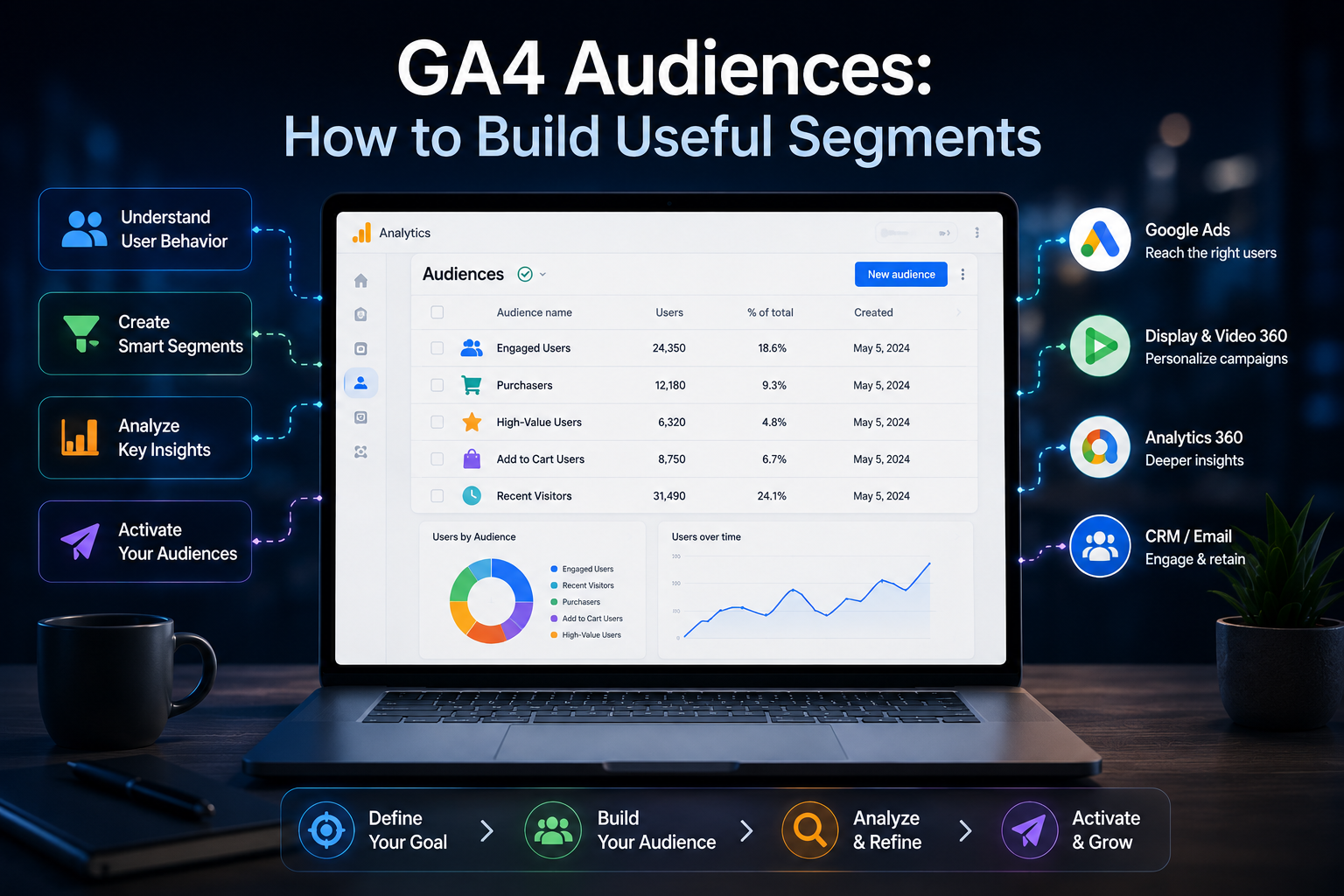
GA4 Audiences get built once, during setup, and then mostly ignored — which is a waste, since a well-built audience is the difference between remarketing that recovers real revenue and a “Recently Active Users” list nobody ever segments further. This guide is for SMB marketers and site owners who want to build audiences that actually drive better ad performance and sharper analysis, not just tick a setup checklist. You’ll get the exact steps, the settings that trip people up, and a clear answer to the question that confuses almost everyone new to GA4: audiences and segments are not the same thing.
Quick Answer: How to Build Useful GA4 Audiences
Build audiences around a specific action tied to revenue or retention — cart abandoners, high-value purchasers, users who viewed pricing but didn’t convert — not broad demographic buckets. Set membership duration deliberately (7 days for cart abandoners, 90-180 days for past purchasers, up to the 540-day maximum for lifetime-value segments), and remember audiences only start counting users from the moment you create them — they are never retroactive.
Audiences vs Segments: The Distinction That Actually Matters
GA4 uses “audience” and “segment” for two genuinely different tools, and mixing them up wastes hours. An Audience is built in Admin → Data display → Audiences. It’s forward-looking only: it starts accumulating users from the exact moment you hit save, has no access to historical data before that point, and exists specifically to be activated — pushed into Google Ads, DV360, or Search Ads 360 for remarketing, or used to filter standard reports. A Segment is built inside an Explore report. It applies retroactively to any date range you already have data for, and exists purely for analysis — you can’t push a segment to Google Ads. If you need to understand how high-value customers behaved last quarter, build a segment in Explore. If you need to show those same customers a remarketing ad next week, build an audience. Confusing the two is the single most common reason SMB teams build an audience, wait two weeks, and wonder why it has zero users from before the audience existed.
How to Build a Custom Audience Step-by-Step
- Go to Admin → Data display → Audiences → New audience.
- Choose a suggested template (Purchasers, Non-purchasers, Recently active users, Predictive) or select “Create a custom audience” to start from scratch.
- Add include conditions based on events, user properties, demographics, or technology — for example,
begin_checkoutfired without a matchingpurchaseevent in the same session. - Add exclusion conditions where relevant — “temporarily exclude” removes users as soon as they no longer match (good for cart abandoners who complete a purchase), while “permanently exclude” removes them for good once triggered.
- Set the scope for each condition — across all sessions, within one session, or within a single event — since this changes what actually counts as a qualifying action.
- Set membership duration, thinking specifically about how long the behavior stays relevant to your remarketing goal.
- Name the audience something a teammate could understand in Google Ads without opening GA4 to check what it means, then save.
If your GA4 ecommerce events aren’t firing cleanly, fix that first — an audience built on top of broken purchase or begin_checkout events will silently produce garbage membership, and there’s no error message warning you it happened.
Membership Duration: Getting This Setting Right
| Audience type | Recommended duration | Why |
|---|---|---|
| Cart abandoners | 3-7 days | Intent decays fast; longer windows waste ad spend on cold leads |
| Content engagers (blog, pricing page) | 14-30 days | Enough time for a longer research-to-decision cycle |
| Past purchasers (repeat-purchase remarketing) | 90-180 days | Matches typical repurchase cycles for most SMB retail/subscription |
| Lifetime-value / loyalty segments | Up to 540 days (max) | Long-term relationship tracking, exclusion lists for acquisition campaigns |
Default duration is 30 days, and the maximum is 540 days (about 18 months). One detail that catches people off guard: every time a user re-triggers the audience’s qualifying condition, their membership duration resets to zero and starts counting again from that point — a cart abandoner who abandons a second cart three weeks later doesn’t age out of the audience, their clock restarts.
Predictive Audiences: What They Actually Need to Work
GA4 offers three predictive metrics built on machine learning: purchase probability, churn probability, and predicted revenue (28-day). They sound like a free upgrade over manually-built audiences, but there’s a real data floor before Google will generate them. Your property needs at least 1,000 returning users who triggered the positive condition (a purchase, for example) and 1,000 returning users who did not, both within a rolling 28-day window — and new users inside their first 7 days don’t count toward either bucket.
Translate that into traffic terms: at a typical 2-3% ecommerce conversion rate, hitting 1,000 purchasers in 28 days means roughly 33,000-50,000 returning sessions in that same window. That’s a real barrier for most SMB stores — a shop doing a few hundred orders a month is nowhere near that floor, and GA4 will simply mark the predictive audience “Not eligible to use” with no path to override it. Check eligibility under Audiences → New audience → Suggested → Predictive; if it’s greyed out, predictive audiences aren’t a realistic option yet, and a well-built custom audience using standard event and property conditions will outperform waiting for a model that may never activate on your traffic volume.
GA4’s Suggested Audience Templates
GA4 ships several pre-built templates worth starting from rather than building blind: Purchasers, Non-purchasers, Recently active users (7/14/28-day variants), and users who triggered a specific event. These are genuinely useful starting points, but the default thresholds rarely match your business as-is — a “Recently active users, 7 days” template is a broad, low-value bucket for most remarketing purposes until you layer additional conditions on top, like combining it with a minimum session count or a specific landing page. Treat templates as a faster starting point for editing, not a finished audience.
Sequential Audiences for Funnel-Based Targeting
Sequences let you require conditions to happen in a specific order, within a specific time window between steps — genuinely useful for funnel-stage remarketing that a flat condition list can’t replicate. An example: step one, viewed a product page; step two, within 3 days, added to cart; then exclude anyone who completed a purchase. That gives you an audience of visitors who showed real intent but stalled at the cart, which is a sharper remarketing target than “everyone who viewed a product page” or “everyone who added to cart,” both of which mix in people who already converted. Sequences live under the same audience builder — click “Add a sequence” instead of a flat condition group, and set the time constraint between steps (“within X days” or “immediately following”).
Using Audiences Inside Standard Reports and Explorations
Audiences aren’t only for ad activation — once built, they show up as a comparison dimension in standard reports and Explorations, letting you compare behavior across audiences without rebuilding the logic as a segment every time. Add an audience as a comparison in any standard report (top-right “Add comparison” control) to see, for example, how your “Cart abandoners” audience’s average session duration or device breakdown differs from your overall traffic. This is a faster way to sanity-check a new audience before switching on the ad spend — if a freshly built “high-value purchasers” audience shows a device or geography split that looks obviously wrong, that’s a signal to check the underlying conditions before the audience ever reaches Google Ads. Combined with a clean custom dimensions setup, audiences can also be layered with business-specific properties — subscription tier, loyalty status, account type — that go well beyond GA4’s default event and demographic conditions.
One detail worth checking before scaling any remarketing audience: confirm your Google Ads conversion tracking is set up correctly first. An audience only tells Google Ads who to show ads to — it says nothing about whether those ads are actually driving the conversions you care about. Running a beautifully segmented audience against broken or incomplete conversion tracking just means Smart Bidding optimizes toward the wrong signal faster.
Common Mistakes That Make Audiences Useless
- Building audiences before fixing broken ecommerce tracking — garbage events in, garbage membership out, with no warning that it happened.
- Leaving membership duration at the 30-day default for everything — a cart-abandoner audience with a 30-day window is mostly cold leads by the time the ad actually shows.
- Expecting historical backfill — audiences are never retroactive; if you need last quarter’s data, that’s a segment in Explore, not an audience.
- Stacking too many conditions into one audience — five AND conditions can shrink your pool so small that Google Ads can’t spend the linked budget efficiently against it.
- Never archiving stale audiences — GA4 properties have an audience limit, and dead audiences from an old campaign quietly eat into it.
Audiences vs Segments in Explorations: When to Use Each
Once you understand the split, the decision is fast: building something to activate in Google Ads or filter a standard report going forward means an Audience. Building something to answer “how did this group of users behave historically” means a Segment inside Explore, which supports the same event, user-property, and sequence conditions but applies them retroactively across whatever date range you’re analyzing. A useful habit for SMB teams: prototype a complex condition set as a Segment in Explore first, confirm the size and behavior look right against real historical data, then rebuild the same logic as an Audience once you’re confident it targets the right group. This avoids burning two weeks of ad spend testing an audience definition you could have validated against existing data in five minutes.
Frequently Asked Questions
What’s the difference between a GA4 audience and a segment?
Audiences are forward-only and built for activation (Google Ads, DV360, report filtering); they start counting from the moment of creation. Segments are built inside Explore, apply retroactively to historical data, and exist purely for analysis — they can’t be pushed to an ad platform.
Are GA4 audiences retroactive?
No. An audience only accumulates users from the point it was created onward. For historical analysis of a group’s past behavior, use a Segment in Explore instead.
What’s the maximum membership duration for a GA4 audience?
540 days, roughly 18 months. The default is 30 days, and duration resets to zero every time a user re-triggers the audience’s qualifying condition.
Why is my predictive audience marked “Not eligible to use”?
Your property hasn’t hit GA4’s data floor: at least 1,000 returning users triggering the positive condition and 1,000 triggering the negative condition within a rolling 28-day window. For most SMB ecommerce sites, that means roughly 33,000-50,000 returning sessions in 28 days — a real barrier below a certain traffic scale.
Can I use a GA4 audience for Google Ads remarketing automatically?
Yes, if your GA4 property is linked to Google Ads with personalized advertising enabled, audiences are shared automatically and available as a targeting option in campaign setup within a short delay after creation.
How many audiences can I create in one GA4 property?
GA4 properties have a per-property audience limit, and archived or stale audiences from old campaigns still count against it until deleted. Periodically archiving audiences you’re no longer using keeps room for new ones and keeps the Google Ads audience picker readable.