
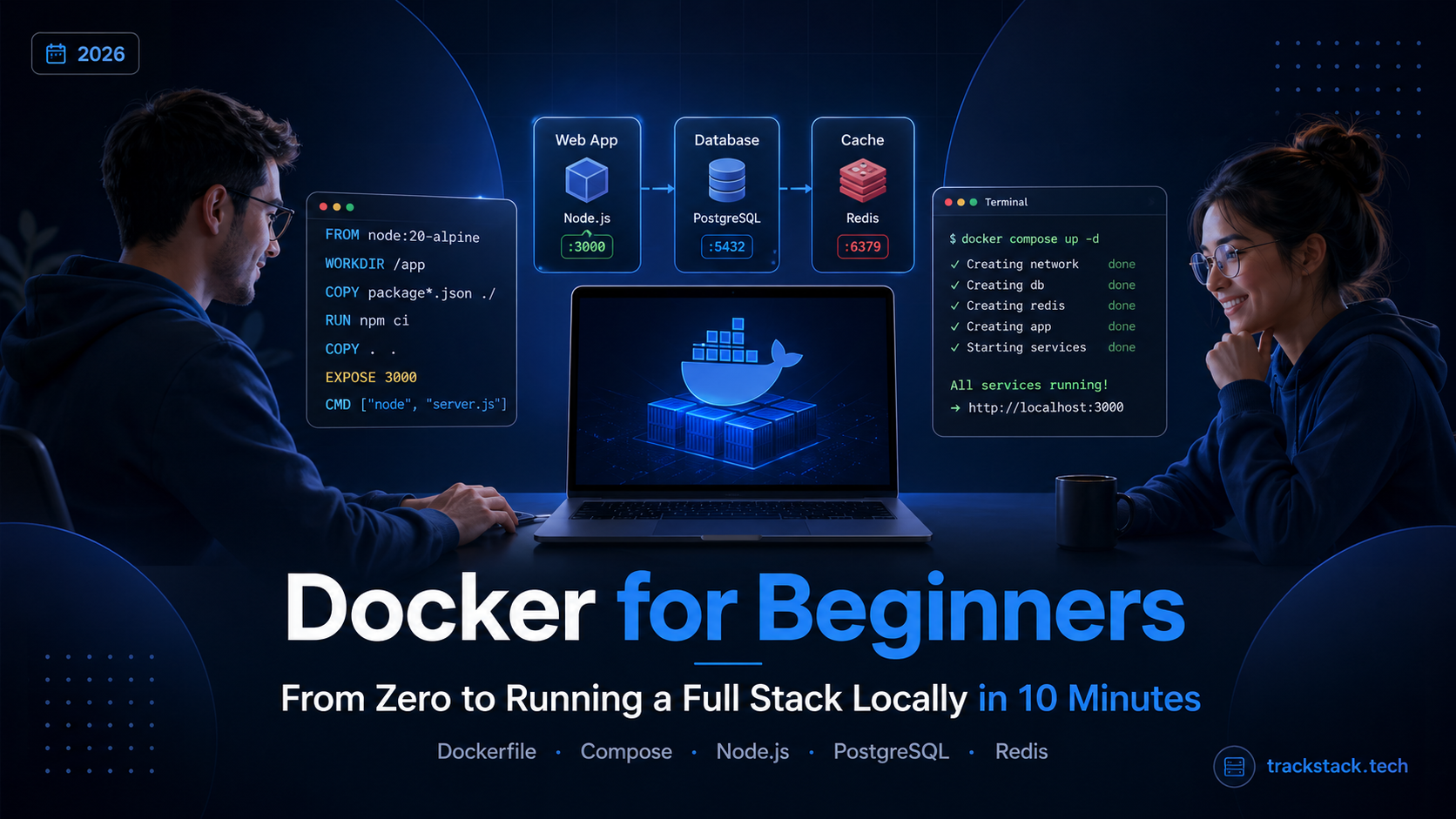
Docker for beginners looks like yet another complex DevOps technology to “learn later.” But the reality is simpler: Docker is a way to run any web service with a single command, without version conflicts between Node.js, Python, or PostgreSQL on your machine. Instead of “works on my machine” — a container that runs identically on any computer.
Below is a step-by-step guide: from installing Docker to running a full web application with a database via docker compose. With code examples you can copy and run in 10 minutes.
Table of Contents
- What Is Docker and Why Developers Need It
- Installing Docker: Windows, macOS, Linux
- Your First Container: docker run in 2 Minutes
- Dockerfile: Containerize Your Own Project
- Docker Compose: Web Service + Database
- Essential Docker Commands Table
- Checklist: Production Readiness
- FAQ
What Is Docker and Why Beginners Should Learn It
Docker is a containerization tool. A container is an isolated environment that holds your code, all dependencies, and configuration. Unlike a virtual machine, a container doesn’t emulate a separate OS — it shares the host’s kernel, so it starts in seconds and uses minimal resources.
Three real scenarios where Docker saves developers:
- Local development without conflicts. Project A needs Node.js 18, project B needs Node.js 20, project C needs Python 3.11 + PostgreSQL 15. Without Docker — version conflicts, nvm, pyenv, brew chaos. With Docker — each project in its own container with the right versions.
- New developer onboarding. Instead of a 2-page setup guide (“install PostgreSQL, Redis, Elasticsearch, configure env variables”) — one command:
docker compose up. A new developer starts writing code in 15 minutes instead of 2 hours. - Environment parity. Dev, staging, production — the same container. A bug that reproduces on staging reproduces locally. Without Docker, “works on my machine” becomes the team’s running joke.
Installing Docker: Windows, macOS, Linux
Docker Desktop is the official app for Windows and macOS. It bundles Docker Engine, Docker CLI, Docker Compose, and Kubernetes (optional). On Linux, Docker Engine installs via the package manager.
Step-by-Step Installation
- Windows 10/11: download Docker Desktop from docker.com/products/docker-desktop. Requirements: WSL 2 enabled (Docker offers to install it automatically). Reboot after installation. Verify:
docker --versionin PowerShell or Terminal. - macOS (Apple Silicon / Intel): download Docker Desktop for your architecture. Drag-and-drop to Applications. Launch Docker Desktop, wait for the whale icon in the menu bar. Verify:
docker --versionin Terminal. - Ubuntu/Debian:
sudo apt update && sudo apt install docker.io docker-compose-v2. Add your user to the docker group:sudo usermod -aG docker $USER, then log out and back in. Verify:docker run hello-world.
After installation, run docker run hello-world. If you see “Hello from Docker!” — you’re set. If not — check that Docker daemon is running (Docker Desktop icon should be green).
Your First Container: docker run in 2 Minutes
Let’s run Nginx — a web server — with a single command. This demonstrates core Docker mechanics: pulling an image, creating a container, mapping ports.
docker run -d -p 8080:80 --name my-nginx nginx:latestWhat happens: Docker downloads the nginx:latest image from Docker Hub (if not cached), creates a container named my-nginx, maps port 8080 on your machine to port 80 in the container, and runs it in the background (-d). Open http://localhost:8080 — you’ll see the “Welcome to nginx!” page.
To stop: docker stop my-nginx. To remove: docker rm my-nginx. To view logs: docker logs my-nginx.
Dockerfile: Containerize Your Own Project
Docker for beginners becomes truly useful when you containerize your own app. A Dockerfile is a text file with instructions for building your project’s image.
Dockerfile Example: Node.js App
# Base image
FROM node:20-alpine

# Working directory inside the container
WORKDIR /app

# Copy package.json and install dependencies
COPY package*.json ./
RUN npm ci --only=production

# Copy the rest of the code
COPY . .

# Port the app listens on
EXPOSE 3000

# Start command
CMD ["node", "server.js"]
Line by line: FROM node:20-alpine — base image with Node.js 20 on Alpine Linux (minimal size, ~50 MB vs ~300 MB for debian-based). WORKDIR /app — all subsequent commands run in /app. COPY package*.json before COPY . . — a caching trick: if package.json hasn’t changed, npm ci won’t re-run on rebuild.
Build the image: docker build -t my-app:1.0 . (the dot = current directory). Run it: docker run -d -p 3000:3000 my-app:1.0.
Dockerfile Example: Python/Flask
FROM python:3.12-slim

WORKDIR /app

COPY requirements.txt .
RUN pip install --no-cache-dir -r requirements.txt

COPY . .

EXPOSE 5000

CMD ["python", "app.py"]
Same principle: dependencies first (requirements.txt), then code. --no-cache-dir reduces image size by removing the pip cache. For production, replace CMD ["python", "app.py"] with CMD ["gunicorn", "-b", "0.0.0.0:5000", "app:app"] — running through a WSGI server.
Docker Compose: Web Service + Database in One Command
A real app rarely runs alone — it needs a database, Redis for caching, maybe Elasticsearch. Docker Compose lets you define all services in a single docker-compose.yml file and start them with one command.
Example: Node.js + PostgreSQL + Redis
version: "3.9"

services:
  app:
    build: .
    ports:
      - "3000:3000"
    environment:
      DATABASE_URL: postgres://user:password@db:5432/mydb
      REDIS_URL: redis://cache:6379
    depends_on:
      - db
      - cache

  db:
    image: postgres:16-alpine
    environment:
      POSTGRES_USER: user
      POSTGRES_PASSWORD: password
      POSTGRES_DB: mydb
    volumes:
      - pgdata:/var/lib/postgresql/data
    ports:
      - "5432:5432"

  cache:
    image: redis:7-alpine
    ports:
      - "6379:6379"

volumes:
  pgdata:
Run: docker compose up -d. This single command builds your app (build: .), starts PostgreSQL 16 and Redis 7, links them via Docker’s internal network (the db service is accessible at hostname db), and persists PostgreSQL data in the pgdata volume (data survives container restarts).
Stop: docker compose down. Stop and delete data: docker compose down -v (removes volumes). Rebuild after code changes: docker compose up -d --build.
For monitoring webhook events from your containerized app, use webhook logging — it simplifies debugging integrations with payment systems and external APIs.
Essential Docker Commands Table
The minimum command set covering 90% of daily Docker work.
| Command | What It Does | Example |
|---|---|---|
| docker run | Creates and starts a container | docker run -d -p 8080:80 nginx |
| docker build | Builds image from Dockerfile | docker build -t my-app:1.0 . |
| docker ps | Lists running containers | docker ps -a (all, including stopped) |
| docker logs | Container logs | docker logs -f my-app (follow) |
| docker exec | Runs command inside container | docker exec -it my-app sh |
| Command | What It Does | Example |
|---|---|---|
| docker stop | Stops a container | docker stop my-app |
| docker rm | Removes a container | docker rm my-app |
| docker images | Lists local images | docker images |
| docker compose up | Starts all services | docker compose up -d –build |
| docker compose down | Stops and removes services | docker compose down -v |
Checklist: From Local Dev to Production-Ready
When your Docker project runs locally, check these before deploying.
- Dockerfile uses alpine-based or slim-based image (minimal size).
- Dependencies install in a separate layer (COPY package.json before COPY . .) for caching.
- .dockerignore includes node_modules, .git, .env, logs — they don’t enter the image.
- Container runs as a non-root user (USER node or USER appuser).
- Environment variables (DB passwords, API keys) are passed via environment or .env file, never hardcoded in Dockerfile.
- Volumes are configured for persistent data (databases, uploads).
- Health check added: HEALTHCHECK CMD curl -f http://localhost:3000/health || exit 1.
- Image tested with
docker compose upon a clean machine (not just your laptop).
For deploying a containerized app to production, you need Docker-compatible hosting. If your project runs WordPress, see how to choose hosting with Docker support. To protect production containers — set up WAF and rate limiting. And for static asset delivery — use Cloudflare CDN.
FAQ
What’s the difference between Docker and a virtual machine?
A Docker container shares the host’s OS kernel and starts in seconds, using 50–200 MB RAM. A VM emulates a full OS, takes minutes to boot, and uses 1–4 GB RAM. For local development, Docker is an order of magnitude more efficient. VMs are needed for OS-level isolation (security, different operating systems).
Do I need Docker for frontend development?
For pure frontend (React/Vue with no backend) — it’s optional. Docker becomes essential when the frontend depends on backend services: API, database, auth service. Docker Compose lets you start the full stack with one command instead of “first start the API, then the DB, then Redis.”
Is Docker Desktop free or paid?
Docker Desktop is free for personal use, education, and small businesses (under 250 employees and under $10M annual revenue). For larger companies — paid subscriptions: Pro ($5/mo), Team ($7/user/mo), Business ($24/user/mo). Docker Engine on Linux is completely free and open-source.
How do I reduce Docker image size?
Three steps: use alpine or slim base images (node:20-alpine instead of node:20), add a .dockerignore (excludes node_modules, .git, tests), and use multi-stage builds (first stage builds, second stage contains only runtime with built files). A typical Node.js image shrinks from 1 GB to 100–150 MB.
Where does database data go in Docker?
By default — inside the container. Removing the container (docker rm) deletes the data. The fix: Docker Volumes (volumes: - pgdata:/var/lib/postgresql/data in docker-compose.yml). A volume persists on the host machine regardless of the container’s lifecycle.